imgcompress
DeployDocs
GitHub
Getting StartedFeaturesConfigurationAdvancedUpdatesDevelopmentHelp & Support

Features

  • Convert & Compress
  • Image Editor
  • YouTube Thumbnail
  • Add Text to Image
  • Smart Crop
  • Compress to a File Size
  • Convert to WebP
  • SVG to PNG
  • Remove Backgrounds
  • AI Upscaling
  • Background Jobs
  • Notify Me When Done
  • Manage Stored Files
Home/Docs/Web UI Guide/Image Editor: Crop, Text, Backgrounds

Image Editor: Crop, Text, Backgrounds

Edit images in your browser: crop, resize for social media, add text and logos, change the background and rotate. Built into imgcompress.

EditorWeb UINew in v1.0

Previous

Convert & Compress

Next

YouTube Thumbnail

On this page

Open the editorThe four tabsCropSize & positionBackgroundText & imagesMove, resize and rotateKeyboard shortcutsTablets and phonesGood to knowRelated
ImgCompress
(c) 2026 ImgCompress|A tool by Karim Zouine
DocsGitHub Docker Hub CreditsSupportDonate

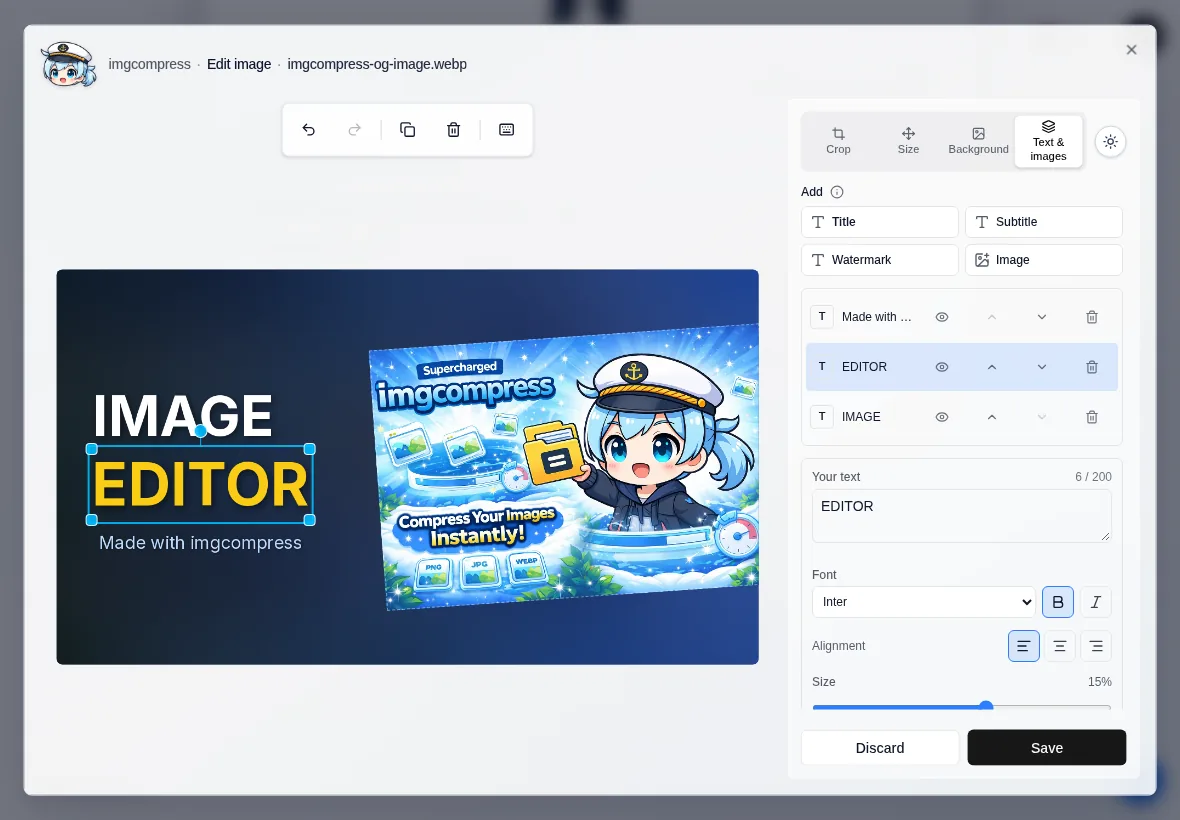
The editor is built into the web app. It does the everyday jobs that used to need a second app: a thumbnail with a title, a logo in the corner, a photo in the right size for a post. Everything happens inside your own container, and the download looks exactly like the preview.
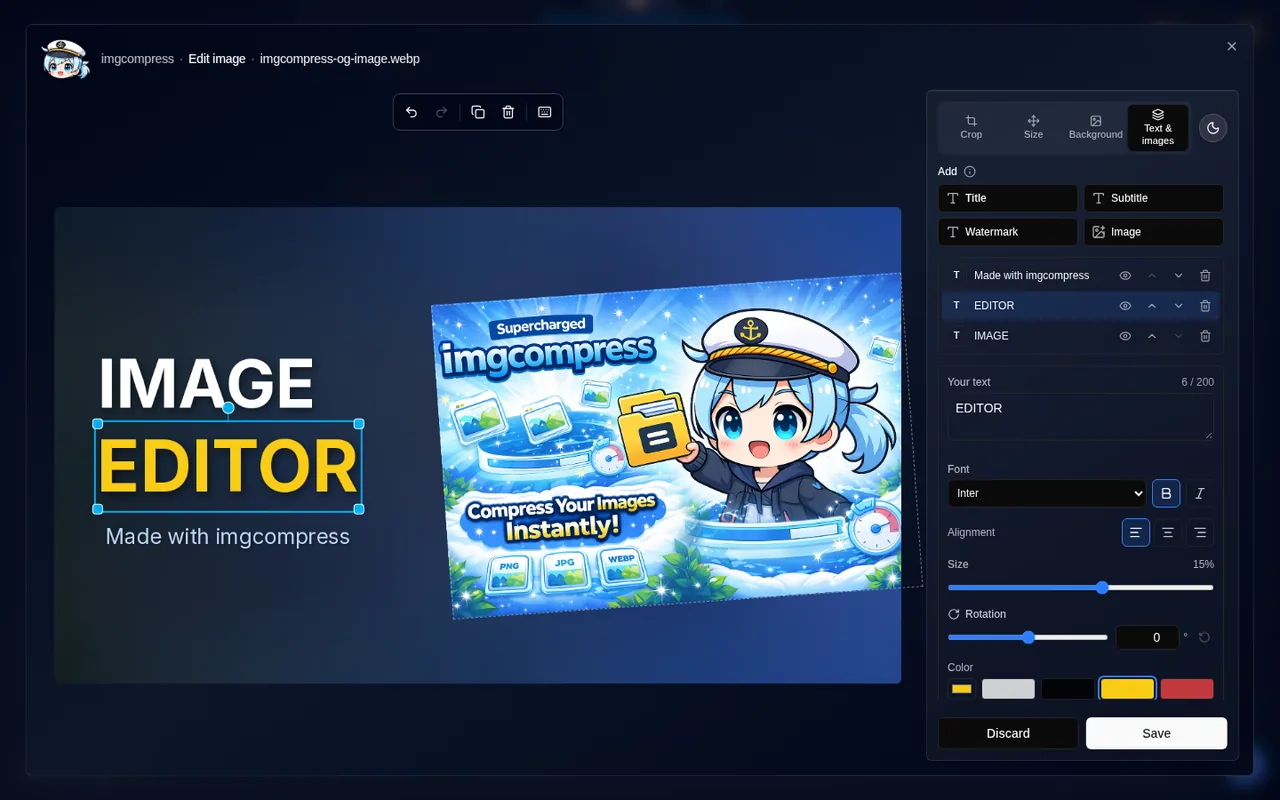
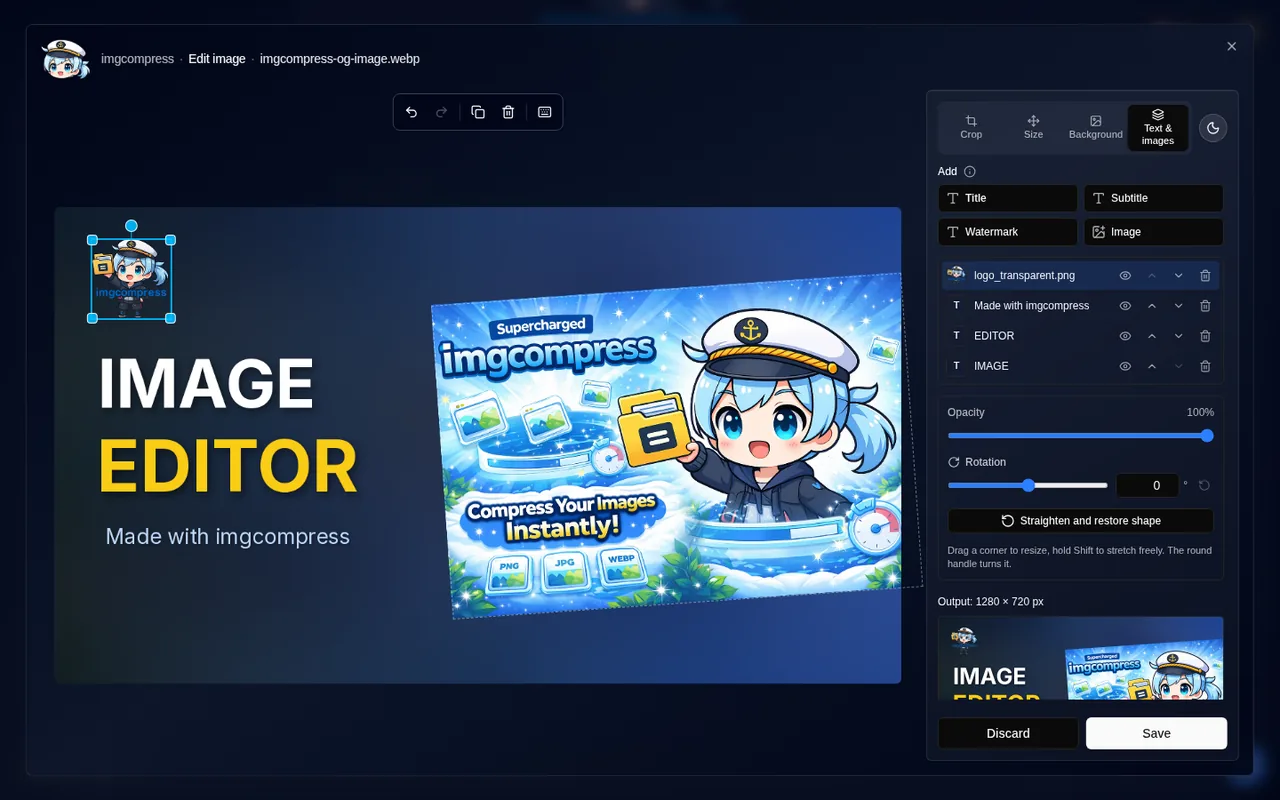
The ImgCompress image editor with the title "IMAGE EDITOR" next to the picture and the Text & images tab openClick to zoomThe ImgCompress image editor with the title "IMAGE EDITOR" next to the picture and the Text & images tab open

Open the editor#

  1. Drop an image into the upload area.
  2. Click Edit on the file.
  3. Make your changes and click Save. Then convert and download as usual.

Discard throws away the changes of this session. A saved edit stays with the file until you remove it, so you can open it again and keep working.

The four tabs#

TabWhat it does
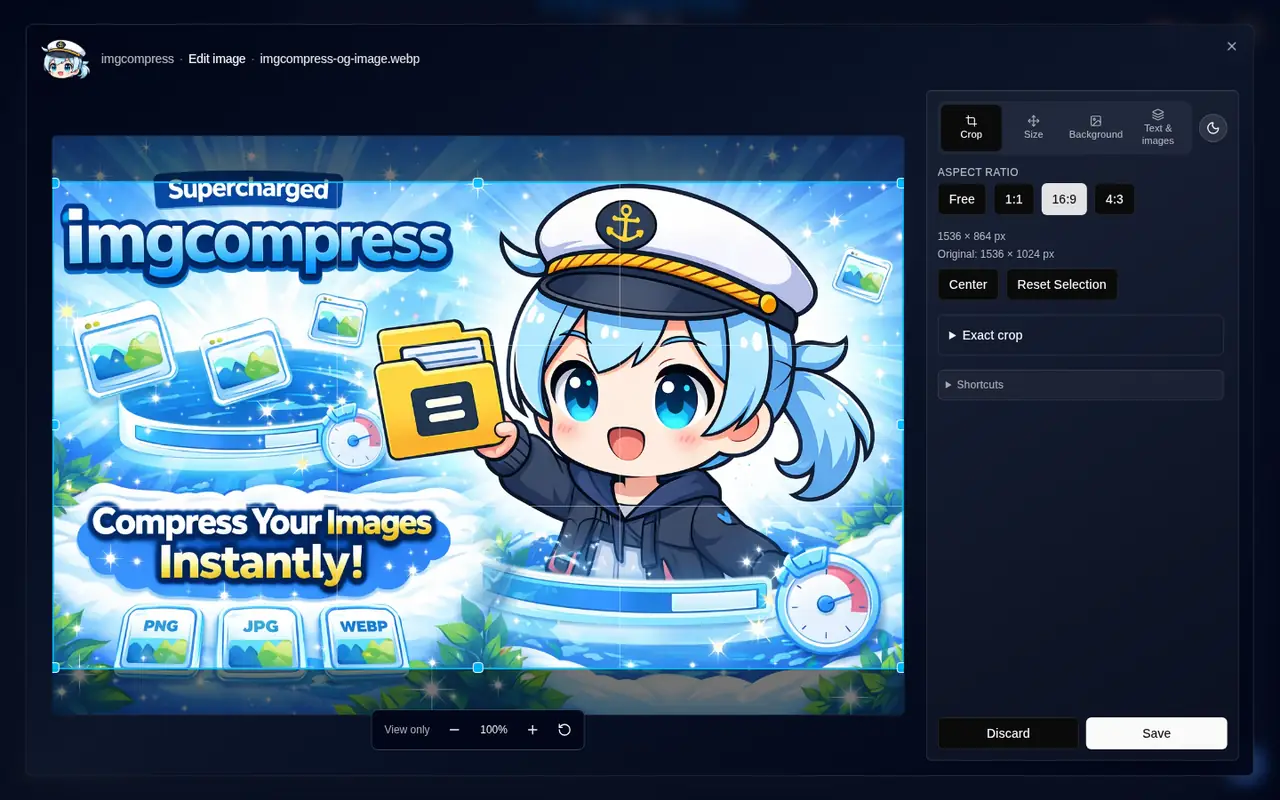
CropA plain crop with ratio presets (Free, 1:1, 16:9, 4:3) or exact pixels.
SizeThe output size and how the image fills it. Move, zoom and rotate the image.
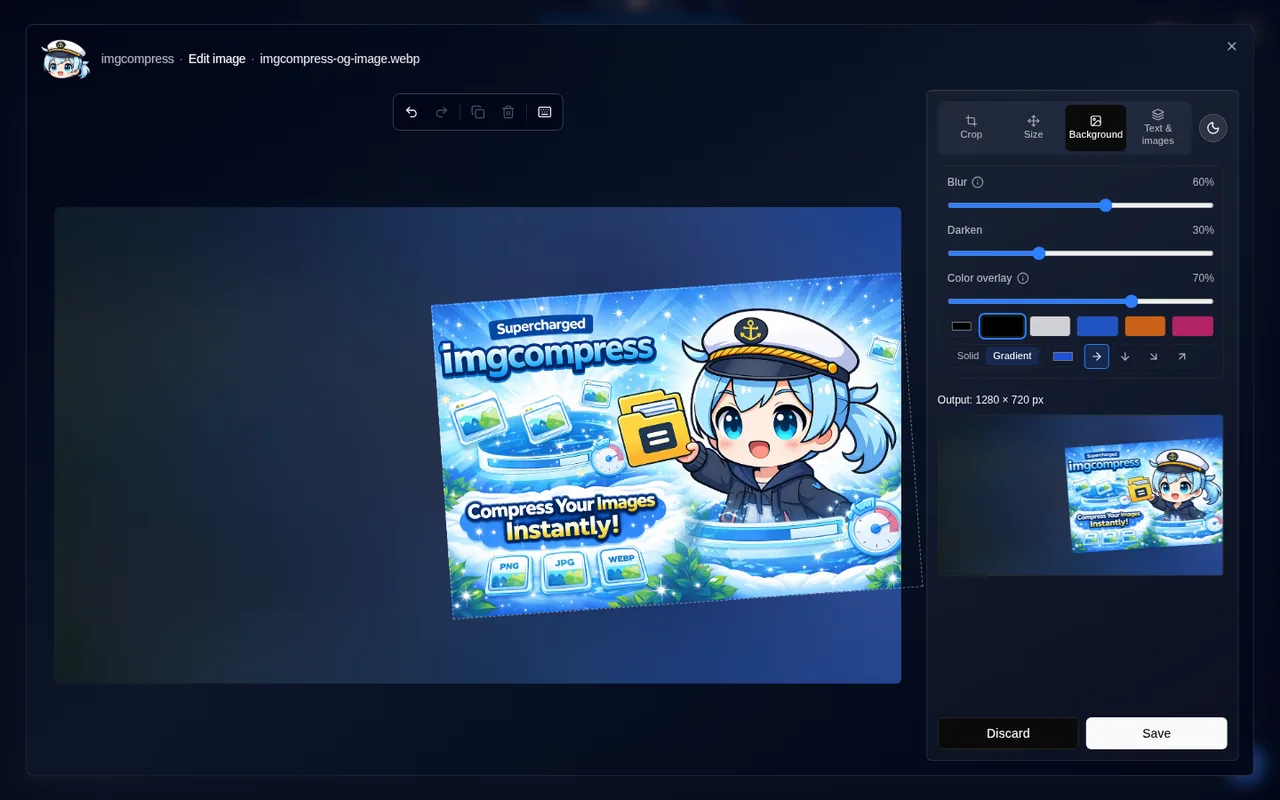
BackgroundBackground picture, pattern, Darken, Blur and a Color overlay (solid or gradient).
Text & imagesTitles, subtitles, watermarks and extra pictures such as a logo.

Crop#

Crop tab with ratio presets and the crop frame on the imageCrop tab with ratio presets and the crop frame on the image

Drag the frame or its corners. Exact crop takes pixel values. The zoom below the image is marked View only: it changes your view, not the result.
Size & position#

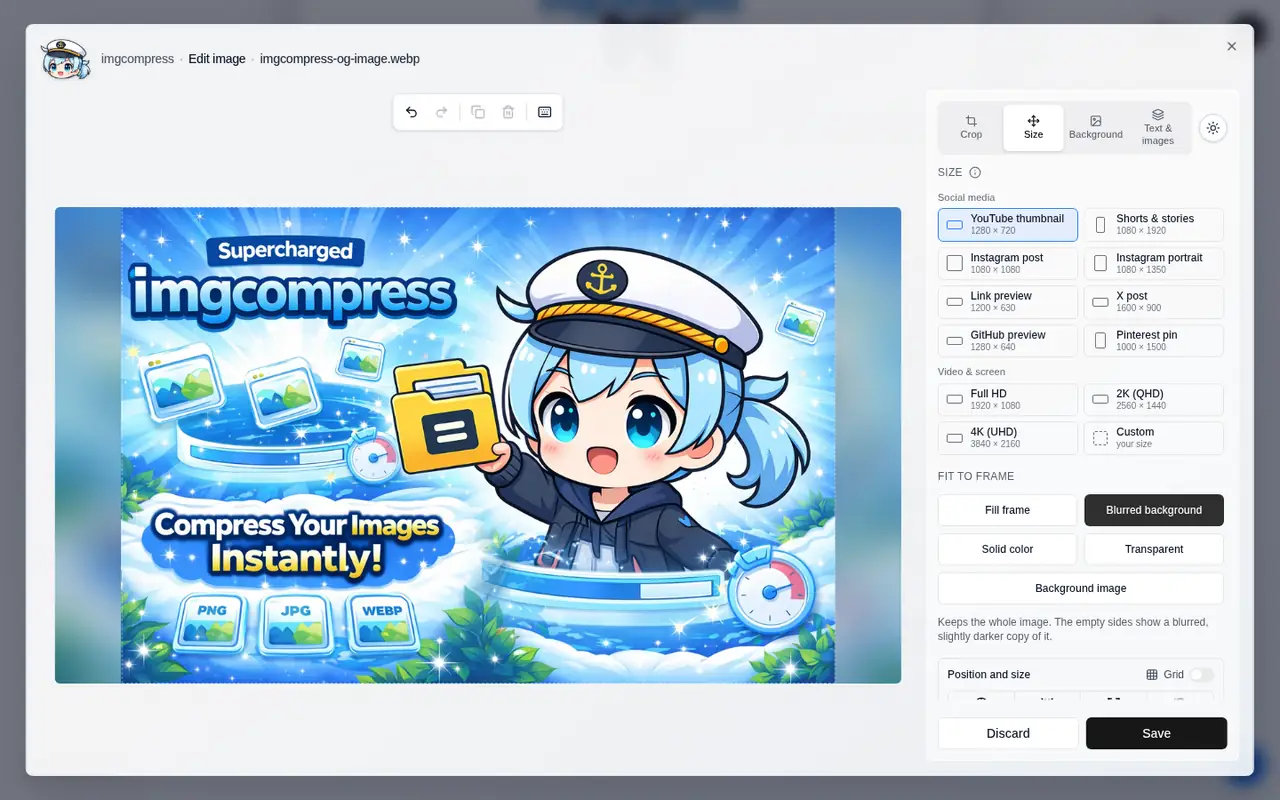
Size tab with presets for YouTube, Instagram, X, link and GitHub previewsSize tab with presets for YouTube, Instagram, X, link and GitHub previews

Pick a preset or your own size:

GroupPresets
Social mediaYouTube thumbnail (1280 × 720), Shorts & stories (1080 × 1920), Instagram post (1080 × 1080), Instagram portrait (1080 × 1350), X post (1600 × 900), link preview (1200 × 630), GitHub preview (1280 × 640), Pinterest pin (1000 × 1500)
Video & screenFull HD (1920 × 1080), 2K (2560 × 1440), 4K (3840 × 2160), custom

Under Fit to frame, choose how the image fills it:

  • Fill frame crops the image to fill the size. The editor finds the important part for you. See Smart crop.
  • Blurred background keeps the whole image and fills the free space with a blurred copy.
  • Solid color, Transparent or Background image put the whole image on a color, on nothing, or on a picture of your choice.

On wide screens, Solid color, Blurred background and Background image show a link below the choice. It opens the Background tab, where you change the color, the blur or the picture.

Drag the image to move it, use the scale field or slider to zoom, and turn it with the round handle or the angle field. Switch on Grid to see helper lines that make it easier to place things. They are only shown in the editor, never in your image.
Background#

Background tab with blur, darken and a color overlayBackground tab with blur, darken and a color overlay

  • Blur and Darken make busy backgrounds calmer, so text stays readable.
  • Color overlay lays a color or a gradient over the background, for example in your brand colors. A dark gradient works well behind a title.
  • Pattern adds a checkerboard, dots, stripes or grid lines.
  • A background picture can be moved, zoomed and rotated on its own.

Text & images#

A logo added as a picture layer, with opacity and rotation controlsA logo added as a picture layer, with opacity and rotation controls

Click Title, Subtitle, Watermark or Image to add a layer. Each layer has its own size, opacity and angle. The list shows all layers: hide one with the eye, change the order with the arrows, delete it with the bin. You can add up to 5 texts and 5 images per design.

More on text: Add text to an image.

Move, resize and rotate#

  • Click an element to select it and drag to move it.
  • Drag a corner to resize. Images keep their shape; hold Shift to stretch freely.
  • Drag the round handle above an element to rotate it, or type an exact Angle (°). Hold Shift to turn in 15° steps.
  • Straighten and restore shape puts an image back to 0° and its original ratio.

The image, the background picture, every text and every picture can be rotated.
Keyboard shortcuts#

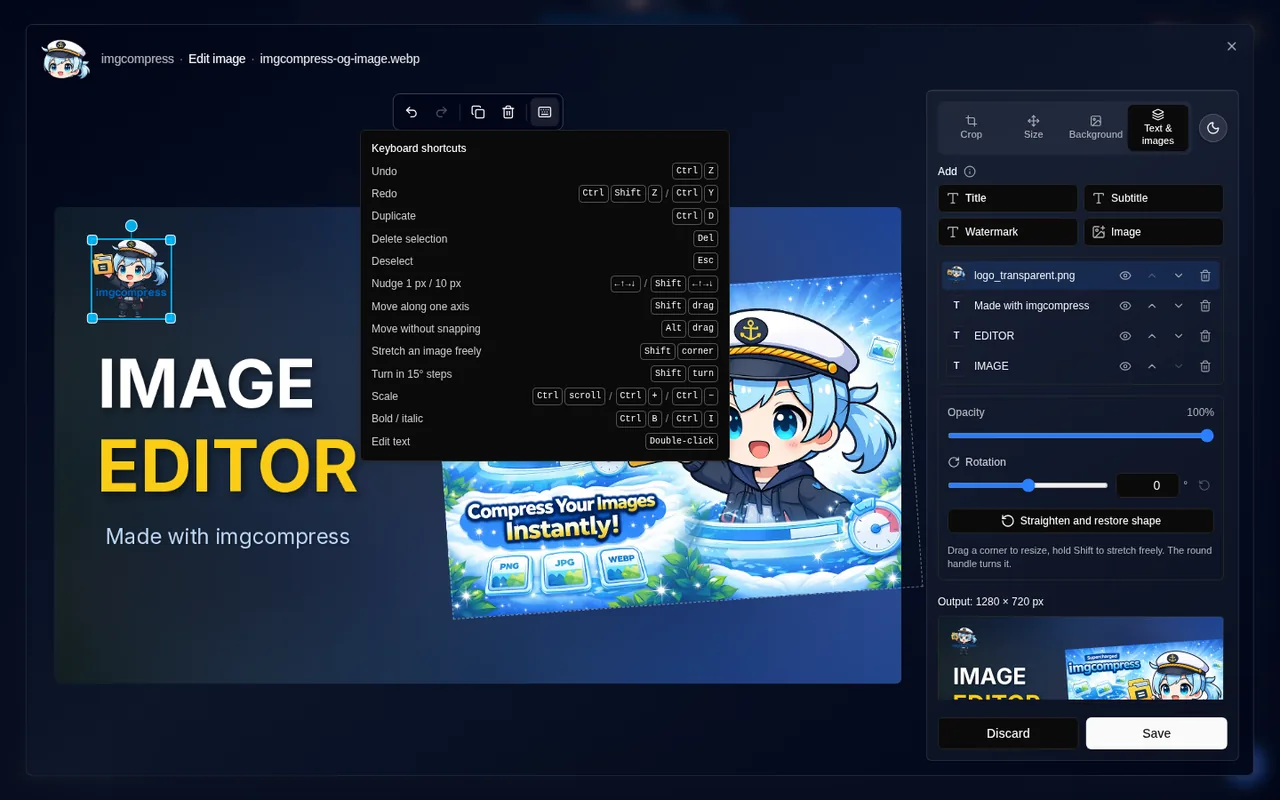
Keyboard shortcuts popover in the editor toolbarKeyboard shortcuts popover in the editor toolbar

The keyboard icon in the toolbar lists them all.

KeysAction
Ctrl/⌘ + ZUndo
Ctrl/⌘ + Shift + Z, Ctrl/⌘ + YRedo
Ctrl/⌘ + DDuplicate
DelDelete selection
EscDeselect
Arrow keys, Shift + arrowsNudge 1 px / 10 px
Shift + dragMove along one axis
Alt + dragMove without snapping
Shift + drag cornerStretch an image freely
Shift + turnRotate in 15° steps
Ctrl/⌘ + scroll, Ctrl/⌘ + + / −Scale
Ctrl/⌘ + B, Ctrl/⌘ + IBold / italic
Double-clickEdit text

Tablets and phones#

The full editor on an iPad in landscapeThe full editor on an iPad in landscape

  • Desktop and tablets in landscape get the full editor. Touch works everywhere: drag to move, pinch to zoom, double-tap a text to edit it. Buttons and handles are big enough for fingers.
  • Phones and tablets in portrait get Crop and Size. A design made on a bigger screen stays as it is when you open it on a phone.

Good to know#

  • Background pictures and images you add are kept only for the editing session. They are never shown to other people who use the same imgcompress.
  • The editor works with every format you can upload, including PSD, HEIC and SVG.
  • Edits are applied first. Format, quality, target size and background removal come after.

Related#

  • Make a YouTube thumbnail
  • Add text to an image
  • Smart crop to an exact size
  • Back to the Web UI guide