AI Image Upscaling: Make Small Images Bigger
Make small images bigger and sharper with AI: 2x, 4x, 8x or up to Full HD, 4K, 8K and 16K. Built into ImgCompress, works offline, no upload, nothing to install.
AIGuideNew in v1.0
Make small images bigger and sharper with AI: 2x, 4x, 8x or up to Full HD, 4K, 8K and 16K. Built into ImgCompress, works offline, no upload, nothing to install.
Make small images bigger with AI, so they stay sharp instead of blurry.
The AI is already built in. Just switch it on: nothing to install or download, no account, no internet. It runs on the CPU inside your container, so no graphics card is needed.
| Normal resize (4x) | AI upscaling (4x, General) |
|---|---|
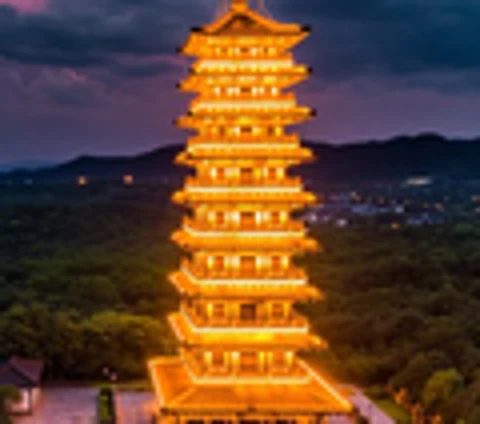 | 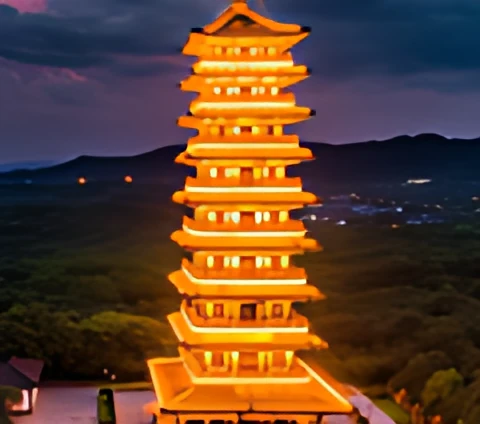 |
The photo starts at about 120 px wide.
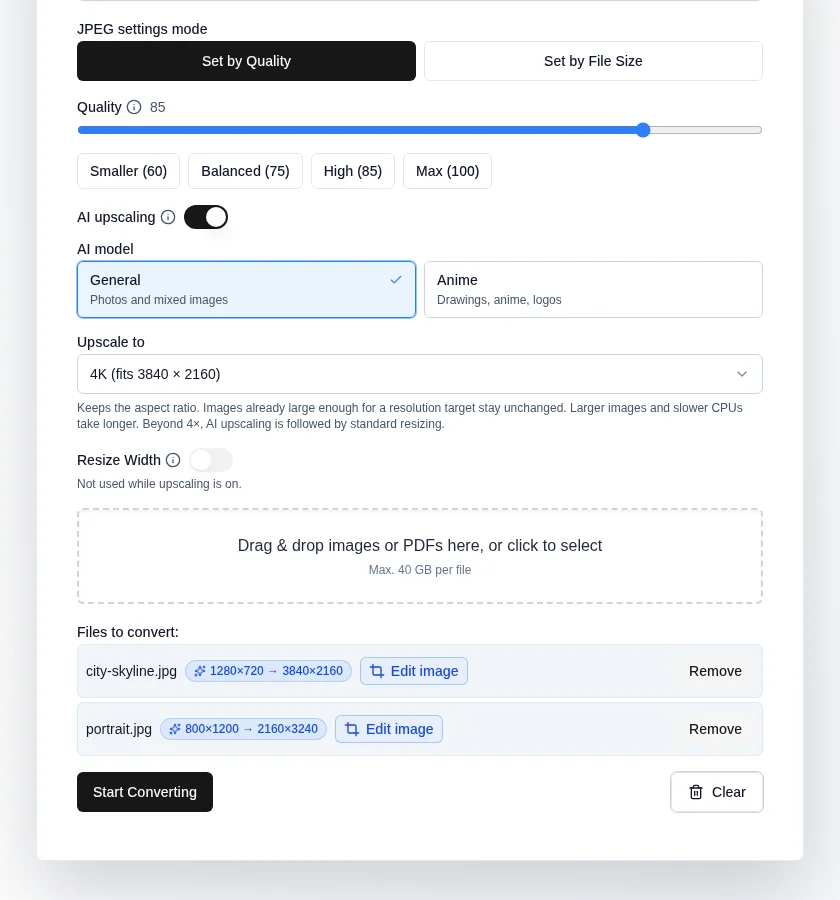
Switch on AI upscaling above the upload area.
Under AI model, click a card:
With General, pick the Image type:
If a result looks too smooth or plastic, try Photo or Balanced. All three take the same time.
Under Upscale to, choose 2× / 4× / 8× larger, or a frame such as Full HD, 4K, 6K, 8K or 16K. The shape of the image stays the same; it fits inside the frame. For 8×, 6K, 8K and 16K a short note reminds you that very big results take longer.
Drop your images. Each file shows its new size, for example 1280×720 → 3840×2160. An image that is already big enough says stays as is, and one that would get too big shows a short warning.
Click Start Converting.
Making images bigger is hard work for a computer. AI upscaling runs on the CPU inside your container, so expect minutes; big images on small CPUs (one or two cores, a small NUC or VM) can take much longer. You can close the tab while it runs, or turn on Notify me when done on the wait screen if notifications are set up.
Same spot, same size. Left: the original, just enlarged. Right: AI upscaling (Anime), done by the AI built into ImgCompress, inside your own container. Nothing is uploaded, your images never leave your container. From 3100 to 8640 px. Drag the slider to compare.
A second example with a very small drawing:
A tiny drawing (118 × 104 px) made 4x bigger. Left: normal enlargement. Right: AI upscaling (Anime), done by the AI built into ImgCompress, inside your own container. Nothing is uploaded, your images never leave your container. The second slider zooms in on one fingernail. Drag to compare.
bashdocker run --rm \ -v "$(pwd):/container/images" \ -v "$(pwd)/done:/container/done" \ karimz1/imgcompress:latest \ cli /container/images /container/done \ --format png --upscale 4x --upscale-model general
Full flag list: CLI reference. --upscale takes 2x, 4x, 8x, 1080p, 4k, 6k, 8k or 16k. --upscale-model takes general (default, Old or noisy photo), general-denoise-medium (Balanced), general-denoise-low (Photo) or anime. The CLI and API keep general as default, so existing scripts give the same result. The web UI starts on Photo.
Level: Advanced self-hosters
General is realesr-general-x4v3 and Anime is realesr-animevideov3, both from the open-source Real-ESRGAN project. They run with ONNX Runtime on the CPU. The Balanced and Photo presets blend General with the official realesr-general-wdn-x4v3 weights (strength 0.5 and 0.25, the same --denoise_strength mix as upstream Real-ESRGAN). The blend is done once while the Docker image is built, so they run exactly as fast as General. The bigger RealESRGAN_x4plus model was tested too and left out: on a CPU it was about 14 times slower per tile and needed about 11 times the memory.
The output cap is 144 megapixels by default (enough for 16K). AI upscaling uses auto CPU threads by default (one per core available to the process).