Skip to content

Using the Web UI

Important

Before you begin, ensure you have installed imgcompress. A local installation is required to run the Web UI.

Quick Start Guide

Step Screenshot Description
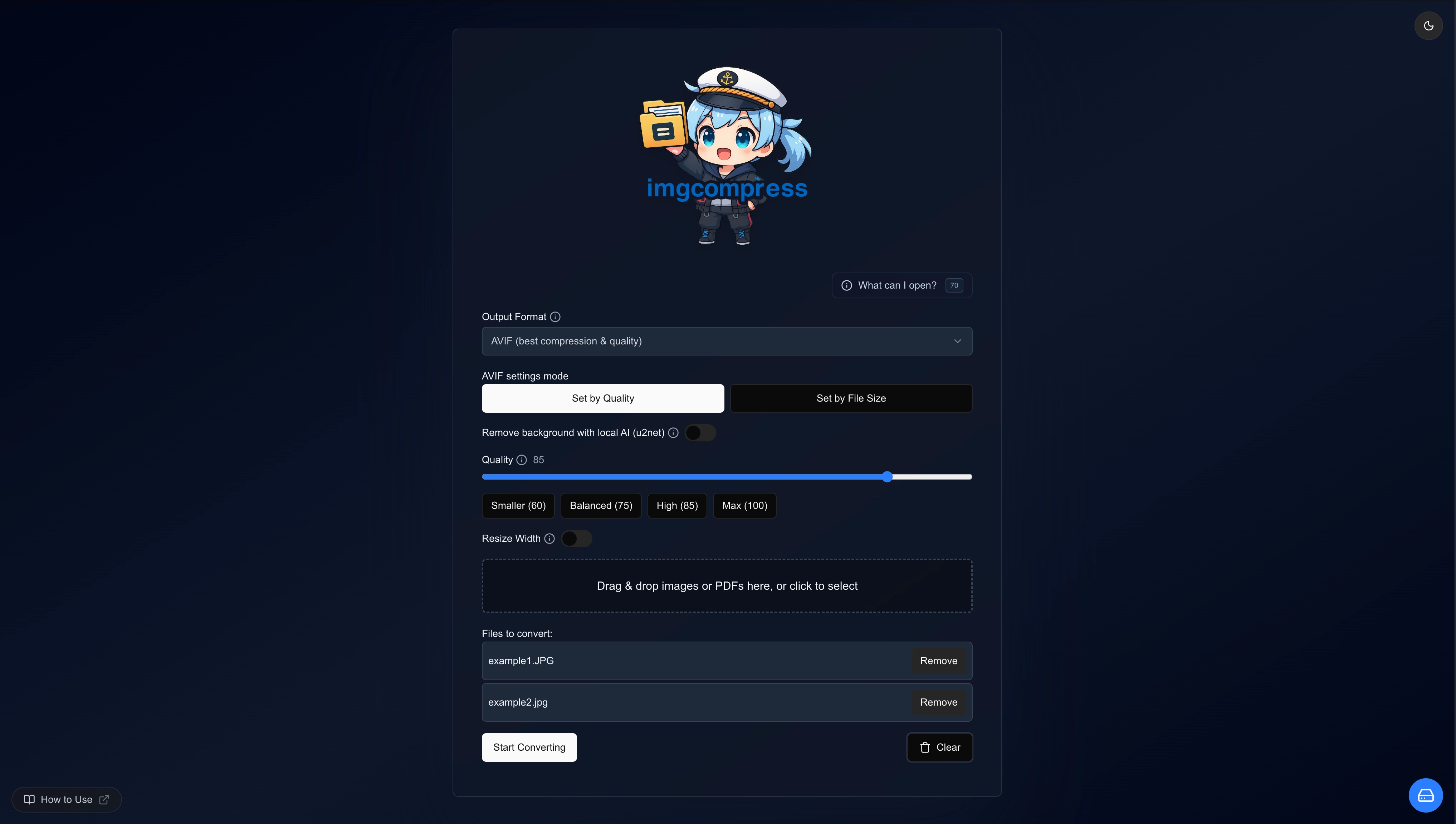
1 Upload and configure compression settings Upload & Configure
Drag & drop images or PDFs. Select your target format (AVIF, JPEG, PNG) and adjust your settings.
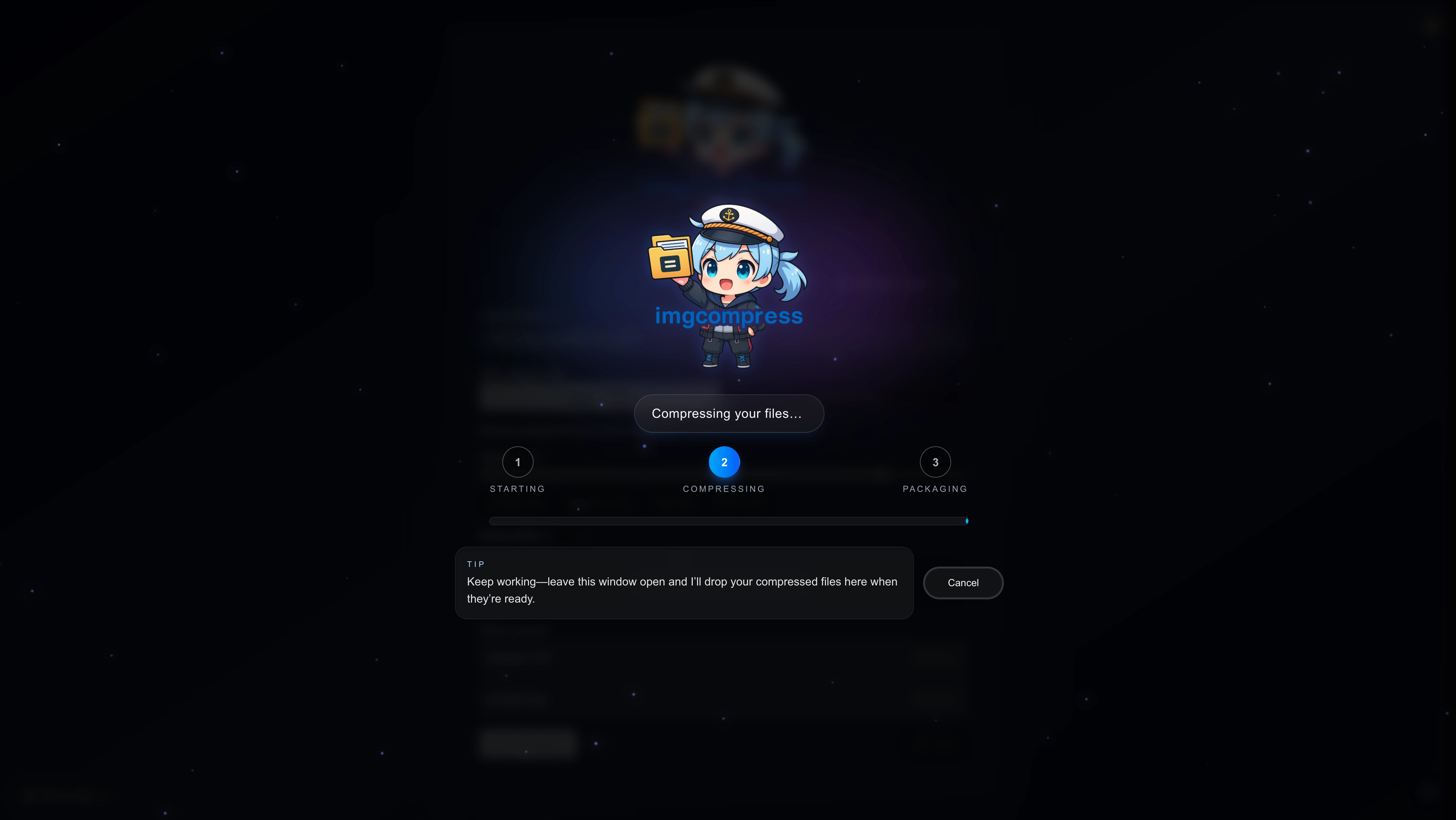
2 Processing images locally Real-time Processing
Watch the progress as your files are optimized locally. No data ever leaves your computer.
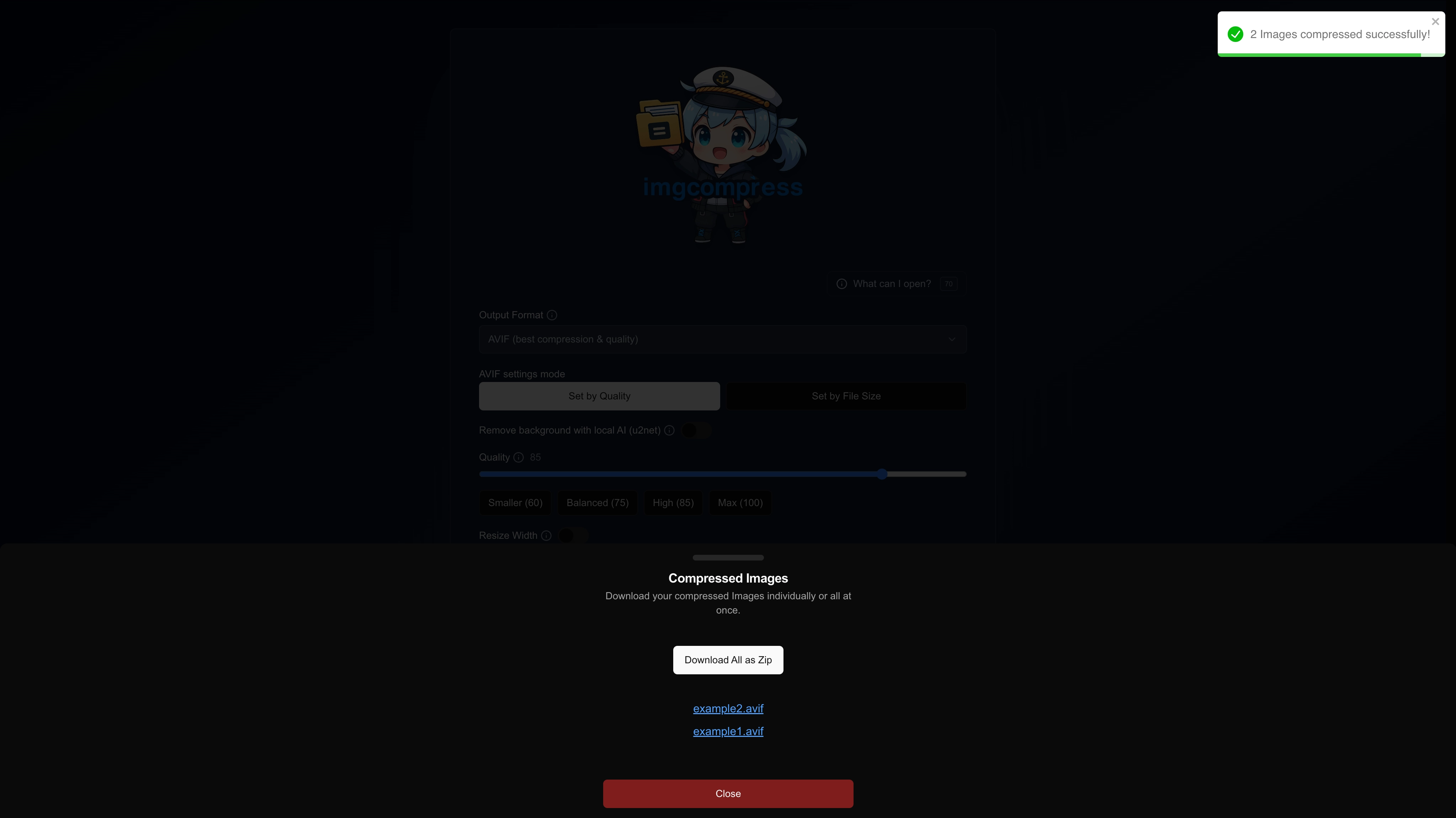
3 Download optimized images Download Results
Save your optimized files individually or all at once in a single ZIP archive.

The Web UI provides a powerful, privacy-focused way to compress images without the need for cloud-based tools.

Key Features

  • Drag & Drop: Easy file management for images and PDFs.
  • Real-time Feedback: Monitor batch progress with live indicators.
  • Bulk Processing: Efficiently handle hundreds of images in one go.
  • ZIP Export: Download all processed images in a organized archive.
  • Privacy First: All processing happens on your local machine.

Choosing the Right Format

Select the format that best fits your project's needs:

Format Transparency Best Use Case
AVIF ✅ Yes Recommended. Next-gen compression that keeps quality high while drastically reducing file size.
PNG ✅ Yes Perfect for graphics and logos where pixel-perfect, lossless quality is essential.
JPEG ❌ No Universal standard for photos where transparency is not required.
ICO ✅ Yes Specifically designed for web favicons and desktop application icons.

Instant Background Removal

Requires Transparency Support

To use this feature, ensure your output format is set to AVIF or PNG.

Why use AVIF for Background Removal?

AVIF combines the transparency support of PNG with superior compression. It allows you to remove backgrounds and maintain a tiny footprint without compromising visual quality.

Step Screenshot Description
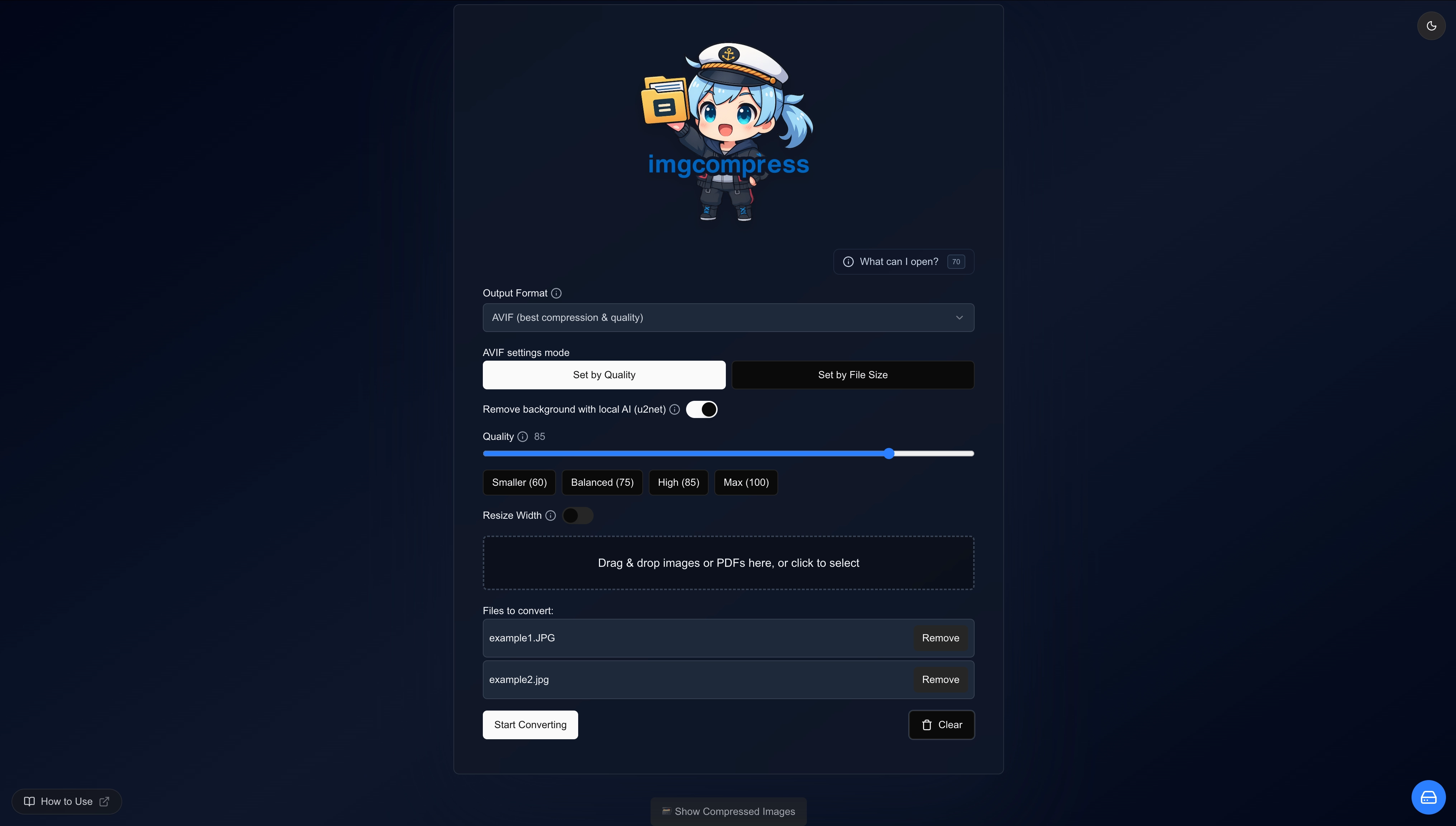
1 Enable remove background toggle Toggle Removal
Select AVIF or PNG as the output, then simply flip the Remove Background switch.
Original Image Background Removed (Local AI)
Original image Background removed image

Target Specific File Sizes

If you need to meet a strict file size limit (e.g., for web uploads), ImgCompress can automatically calculate the optimal quality for you.

AVIF Support

The Max Output Size slider works for both JPEG and AVIF. Since AVIF compresses more efficiently, you can often achieve higher visual quality within the same size limit.

Step Screenshot Description
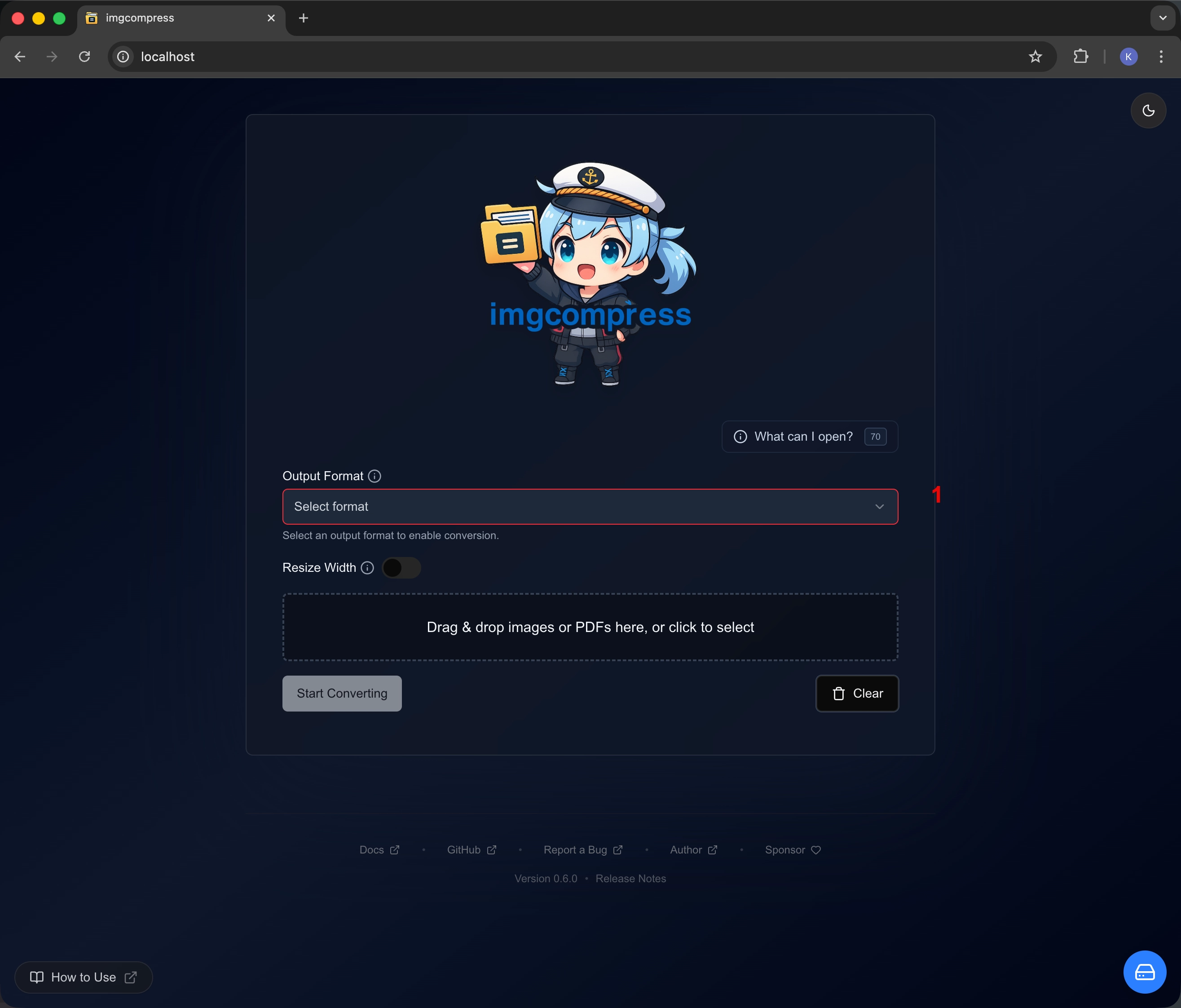
1 Select JPEG or AVIF format Select Format
Choose JPEG or AVIF from the format dropdown.
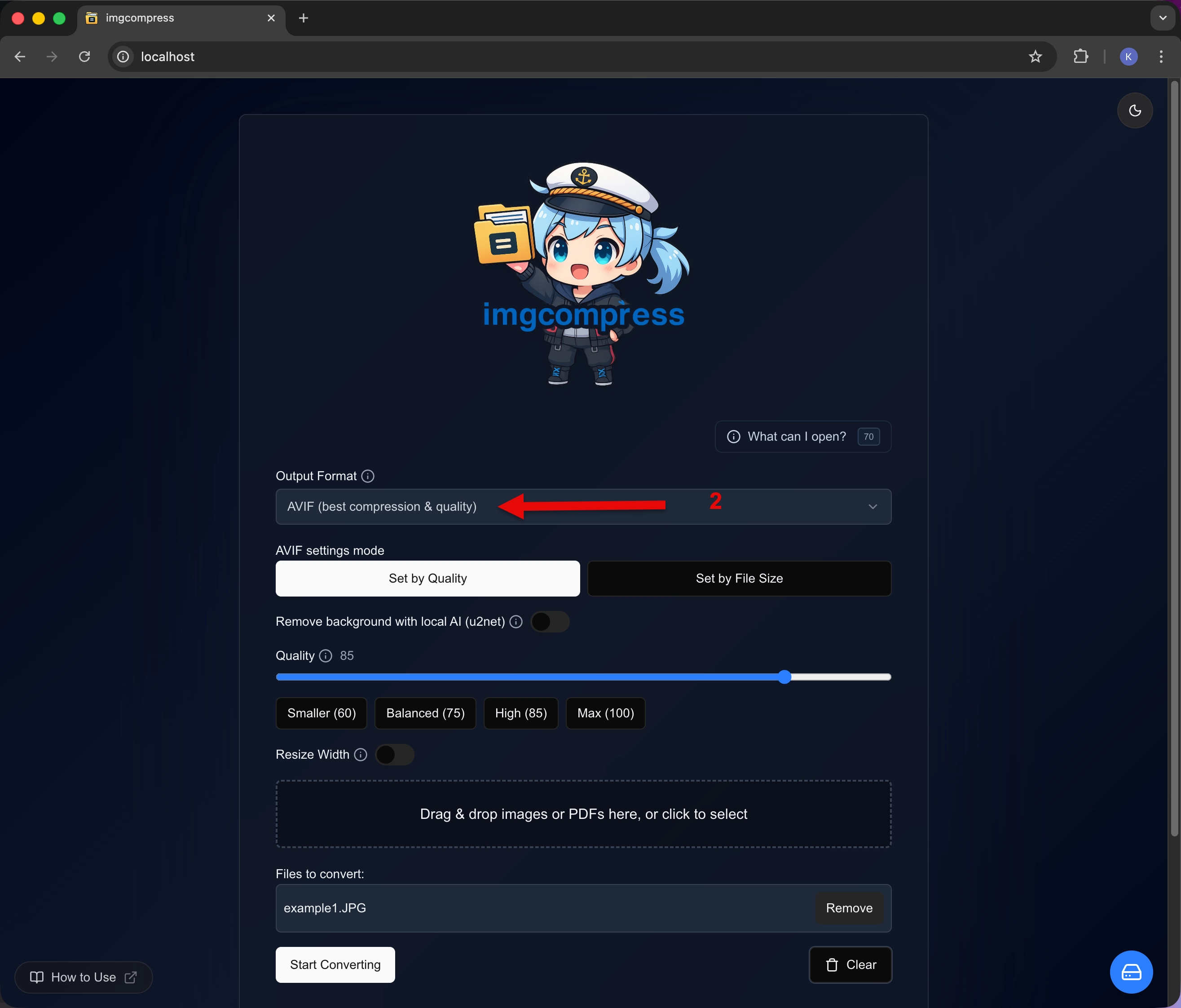
2 Upload images for processing Add Files
Drag your images into the interface to begin.
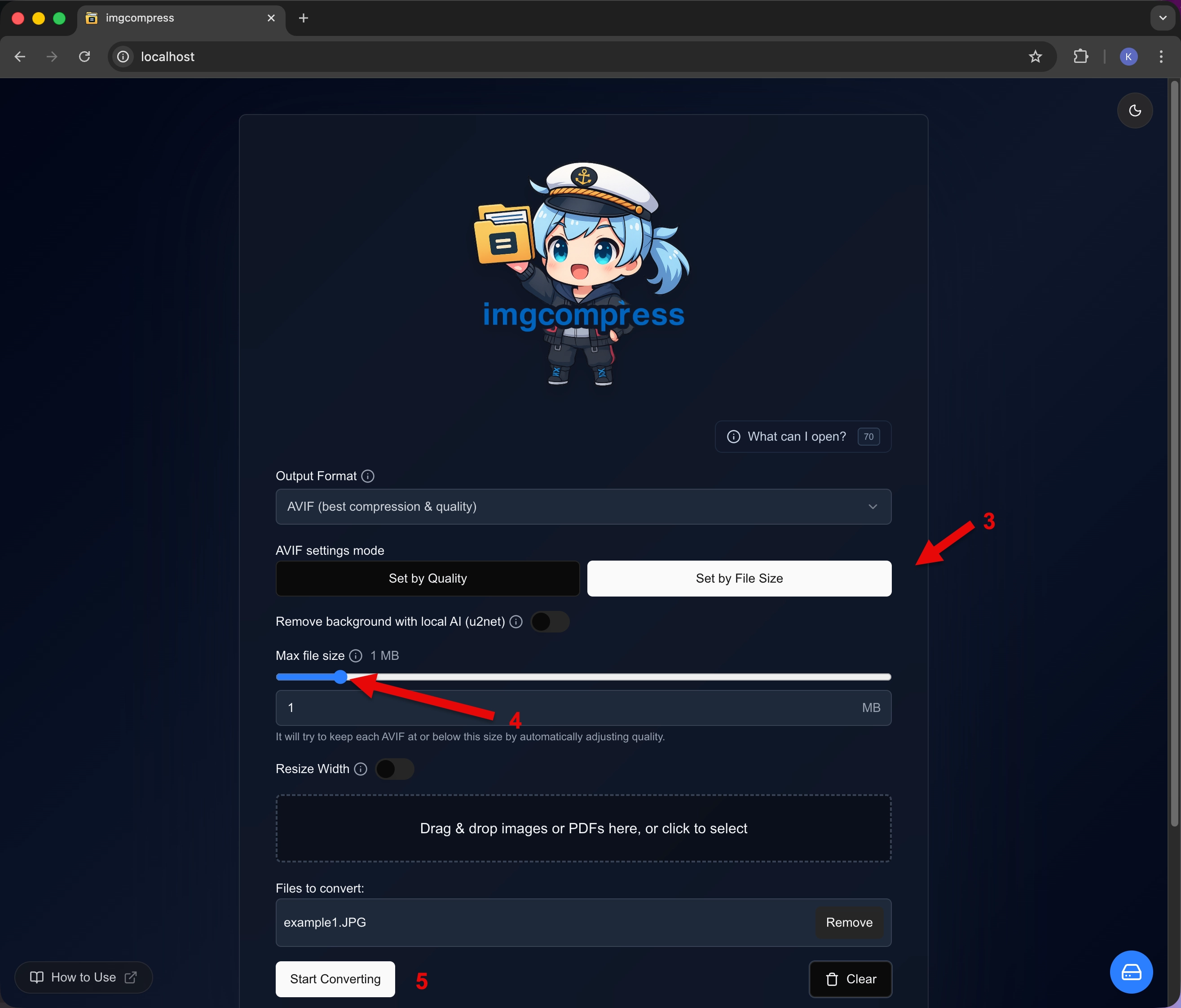
3 Configure maximum file size Set Limit
Navigate to the Set by File Size tab and enter your desired maximum (e.g., 500 KB).
4 Start conversion process Convert
Click Start Converting to let the AI find the best balance.
5 Download optimized image Save
Once complete, download your perfectly-sized image.

High-Security & Offline Usage

imgcompress is engineered for air-gapped environments where data privacy and network isolation are critical requirements. This section explains how to verify and manage your deployment's connectivity status.

Connectivity Monitoring & Verification

The Web UI includes a built-in System & Connectivity Status utility. This feature provides immediate visibility into the container's network posture, ensuring that isolation policies (if applied) are correctly enforced.

Monitoring Features

  • Container Health: Real-time validation that the core image processing engine is operational.
  • Network Reachability: A diagnostic check to confirm whether the container has outbound access to the public internet.

Privacy Audit

All image processing is 100% local. The connectivity check is a lightweight socket probe and never transmits images, metadata, or user data. It serves strictly as a visual verification tool.

Status Indicators

The interface provides clear visual cues regarding your current network environment:

Restricted / No Internet (Recommended) Online / Internet Available
No internet Internet access

How to Access the Connection Status

  1. Navigate to the Storage Management section: Storage Management
  2. Click the System & Connectivity Status button: Status Button
  3. Review your System and Network Status overview: Status View

Secure Configuration

For detailed instructions on how to configure your environment for total network isolation, see the Hardened & Offline Deployment Guide.