title: "Installing Imgcompress with Docker description: How to set up ImgCompress on Docker, Synology NAS, or Linux. Get your private image optimizer running in under a minute.
Installation: Docker Deployment Guide
Run the imgcompress Web App using Docker.
No local dependencies, no configuration clutter. Just a high-performance image optimization tool ready in seconds.
Quick Start (Recommended)
Fresh Install?
If you have used imgcompress before, ensure you have the newest version by running:
Best choice for long-running setups and easy upgrades.
- Create a
docker-compose.ymlfile: - Launch the container:
- Once the container is running, open your web browser & navigate to: http://localhost:3001
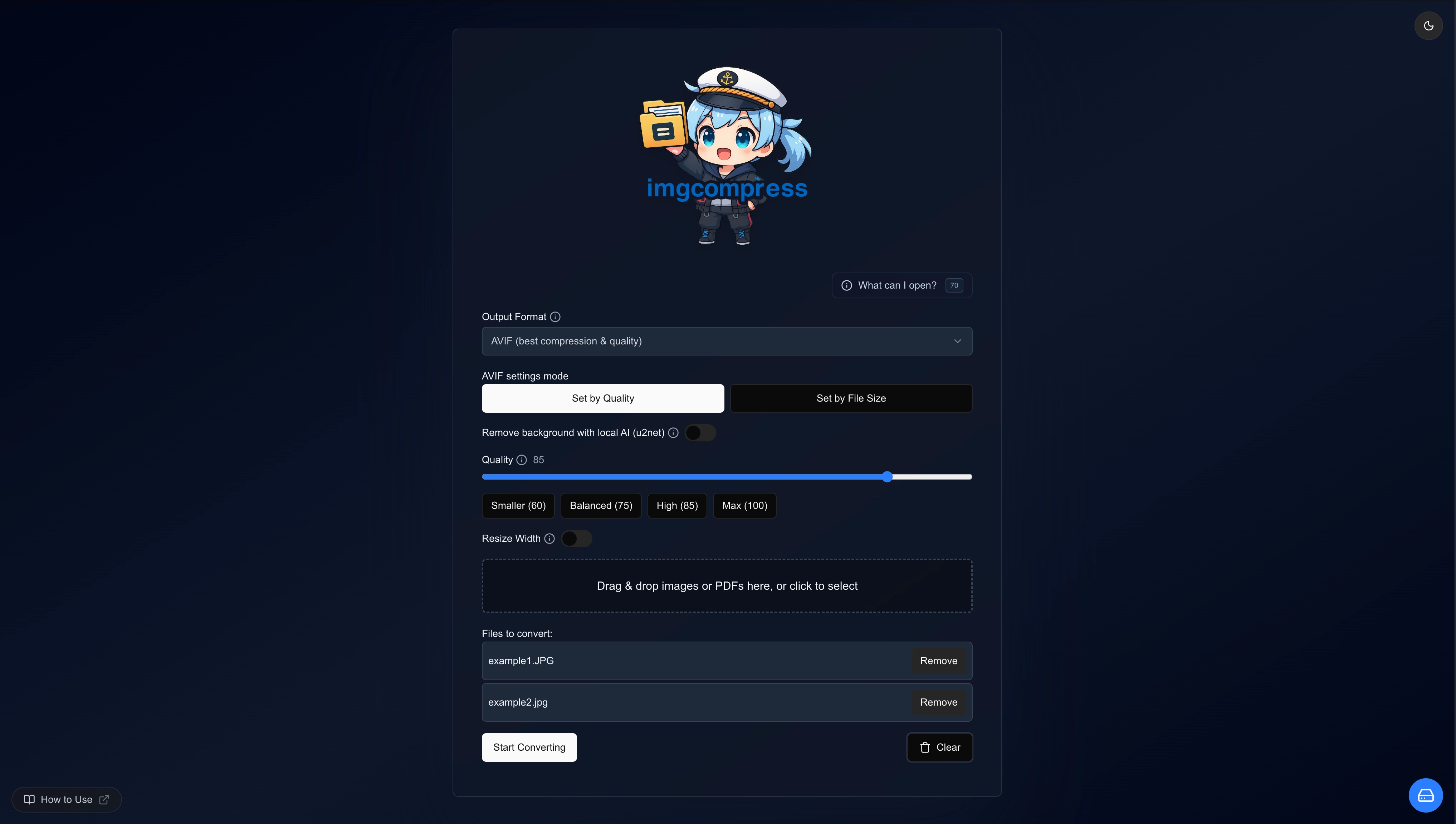
Standard Mode (Default: Mascot Enabled)
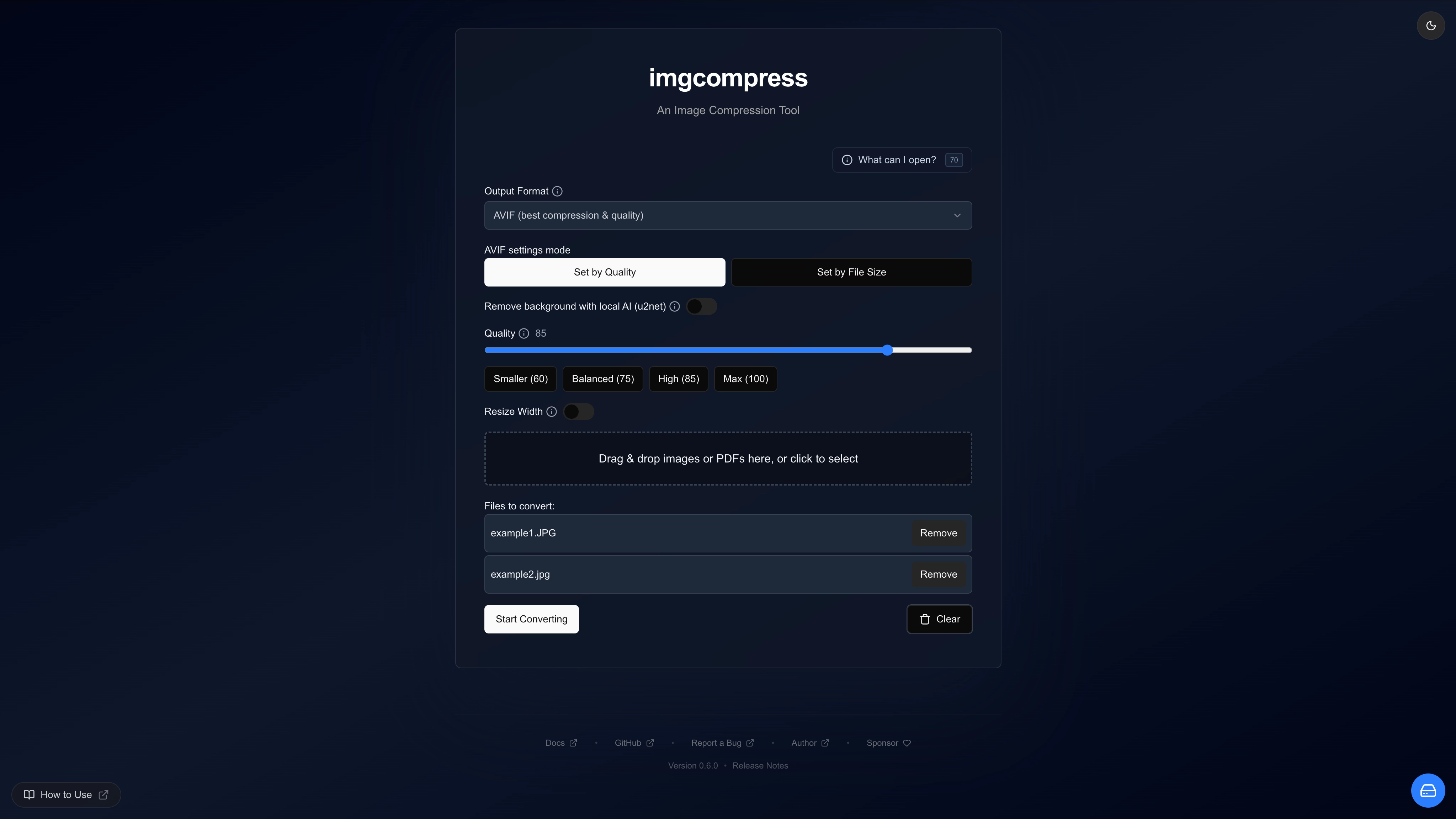
Minimal Mode (Hide Mascot)
To disable the mascot and use a cleaner, text-only interface, add -e DISABLE_LOGO=true to your command:
Once the container is running, open your web browser & navigate to: http://localhost:3001
Maintenance & Updates
Keep your instance secure and up-to-date.
| Method | Command |
|---|---|
| Docker Compose | docker compose pull && docker compose up -d |
| Docker Run | docker pull karimz1/imgcompress:latest && docker rm -f imgcompress && docker run -d --name imgcompress -p 3001:5000 --restart unless-stopped karimz1/imgcompress:latest |
Choosing Your Version
Recommended
Use latest unless you have a specific reason not to.
| Tag | Description | Best For |
|---|---|---|
Stable (latest) |
Fully tested release. Each version is manually QA-verified. | Most users. |
Pinned (X.Y.Z) |
An exact version that never changes (e.g., 0.4.0). |
Production & Reproducibility. |
Nightly (nightly) |
Latest changes & dependency bumps. | Beta testing new features. |
Pinned Release (e.g., 0.4.0)
A version that never changes. Ideal for production environments requiring strict reproducibility.
Nightly (nightly)
Includes the newest features and dependency updates.
⚠️ May include breaking changes. Think of it as a public beta.
| Architecture | Platform | Status |
|---|---|---|
| linux/amd64 | x86-64 (Linux, Windows WSL 2) | ✅ Supported |
| linux/arm64 | ARM64 (Apple Silicon, RPi 4+, AWS Graviton) | ✅ Supported |
Windows Desktop: Runs via Docker Desktop + WSL 2 (no native Windows-container build needed).
Testing Note
All platforms above are built and run in CI with QEMU multi-arch emulation and a GitHub Actions matrix. That means the images pass automated tests, but not every architecture has been manually tried on physical hardware.
Hardened & Offline Deployment (High-Security)
For organizations requiring extreme data isolation (e.g., HIPAA, GDPR, or SOC2), imgcompress supports a fully air-gapped configuration. This workflow severs the container's ability to communicate with the public internet.
Advanced Implementation Only
This reference architecture introduces significant infrastructure complexity. It requires manual maintenance of Docker networking and typically a pre-configured reverse proxy. Use this only if your security model mandates total network isolation.
Technical Implementation
To deploy in a zero-egress environment, use the provided hardened configuration, I created as a sample for you:
# ==============================================================================
# imgcompress - Enterprise No-Internet Privacy Configuration (docker compose)
# ==============================================================================
# This configuration is designed for high-security / high-privacy environments
# where the application MUST NOT have any external internet access.
#
# This is an advanced setup for users who want imgcompress to run in an extrem secure environment.
# It is not recommended for average users as it makes it complex to setup.
# But it gives you the maximum security.
#
# How it works:
# 1. 'imgcompress-app': The core application. It is locked in an 'internal'
# bridge network that has NO default gateway and NO routing to the internet.
# 2. 'imgcompress-no-internet' (Proxy): A tiny Nginx container that acts as a
# secure bridge. It maps to your localhost (3001) and forwards traffic to
# the isolated app.
#
# Karim Zouine - 2025 - https://github.com/karimz1/imgcompress
# ==============================================================================
services:
# ----------------------------------------------------------------------------
# THE APPLICATION - STICKY ISOLATION
# ----------------------------------------------------------------------------
imgcompress:
image: karimz1/imgcompress:latest
container_name: imgcompress-app
restart: always
# IMPORTANT: No 'ports' mapped here. Direct host access is blocked.
environment:
- DISABLE_LOGO=true # Remove branding mascot for enterprise use
- DISABLE_STORAGE_MANAGEMENT=false # Keep storage management active
networks:
- isolated_network # Only connect to the lock-down network
# ----------------------------------------------------------------------------
# THE PROXY - SECURE HOST BRIDGE
# ----------------------------------------------------------------------------
proxy:
image: nginx:alpine
container_name: imgcompress-no-internet
ports:
- "3001:80" # Exposed to YOU at http://localhost:3001
depends_on:
- imgcompress
# Self-contained: The Nginx config is written dynamically on startup.
# No external .conf files or volume mounts are required.
command: >
sh -c "printf 'server {
listen 80;
location / {
proxy_pass http://imgcompress:5000;
proxy_set_header Host $$host;
proxy_set_header X-Real-IP $$remote_addr;
proxy_set_header X-Forwarded-For $$proxy_add_x_forwarded_for;
proxy_set_header X-Forwarded-Proto $$scheme;
}
}' > /etc/nginx/conf.d/default.conf && nginx -g 'daemon off;' "
networks:
- isolated_network # Bridge to the application
- host_access_network # Bridge to your local machine
# ------------------------------------------------------------------------------
# NETWORK INFRASTRUCTURE
# ------------------------------------------------------------------------------
networks:
# The 'isolated_network' is marked as internal.
# Containers here cannot reach the internet, even if they try.
isolated_network:
internal: true
# The 'host_access_network' allows the proxy to talk to the host (port mapping).
host_access_network:
internal: false
Post-Installation Verification
Once deployed, you should audit your network status using the built-in monitoring tools. For detailed instructions on verifying your isolation status, see the High-Security & Offline Usage Guide.